TL;DR
- The Cessna 172 Skyhawk is the best first aircraft in MSFS 2024 — it is slow, forgiving, and matches the in-sim tutorial content.
- Use Simple Start (
Ctrl + E) so the engine is already running when you load in. - The World Map is where you set your aircraft, departure airport, and weather before every flight.
- Set Assistance Options → Easy before your first flight to enable auto-rudder and turn off Crash Detection.
- This guide takes you from opening the World Map to your first touchdown in under 30 minutes.
You can complete a full flight in Microsoft Flight Simulator 2024 in under 30 minutes, even if you have never played a flight simulator before. This guide walks you through every step — choosing your aircraft, setting up the World Map, and landing safely — using the settings that make a first flight as smooth as possible.
This article is part of the MSFS 2024 beginner guide on Flight Sim Workshop.
Step-by-step screenshots will be added in a future update.
What Is Microsoft Flight Simulator 2024?
Microsoft Flight Simulator 2024 (MSFS 2024) is a civilian flight simulation game by Asobo Studio and published by Microsoft, released on 19 November 2024. It uses satellite imagery, AI-generated terrain, and live weather data to simulate the entire planet. You fly real aircraft — from small propeller planes to widebody jets — at real airports worldwide.
For a first-time player, MSFS 2024 can feel overwhelming. The cockpit looks complex, the world is enormous, and controls take time to learn. This guide gives you exactly what you need for one successful first flight.
Before You Fly: First-Launch Checklist
Take three minutes to check your setup before loading any aircraft — this is the most common step new players skip, and the most common reason first flights end in frustration.
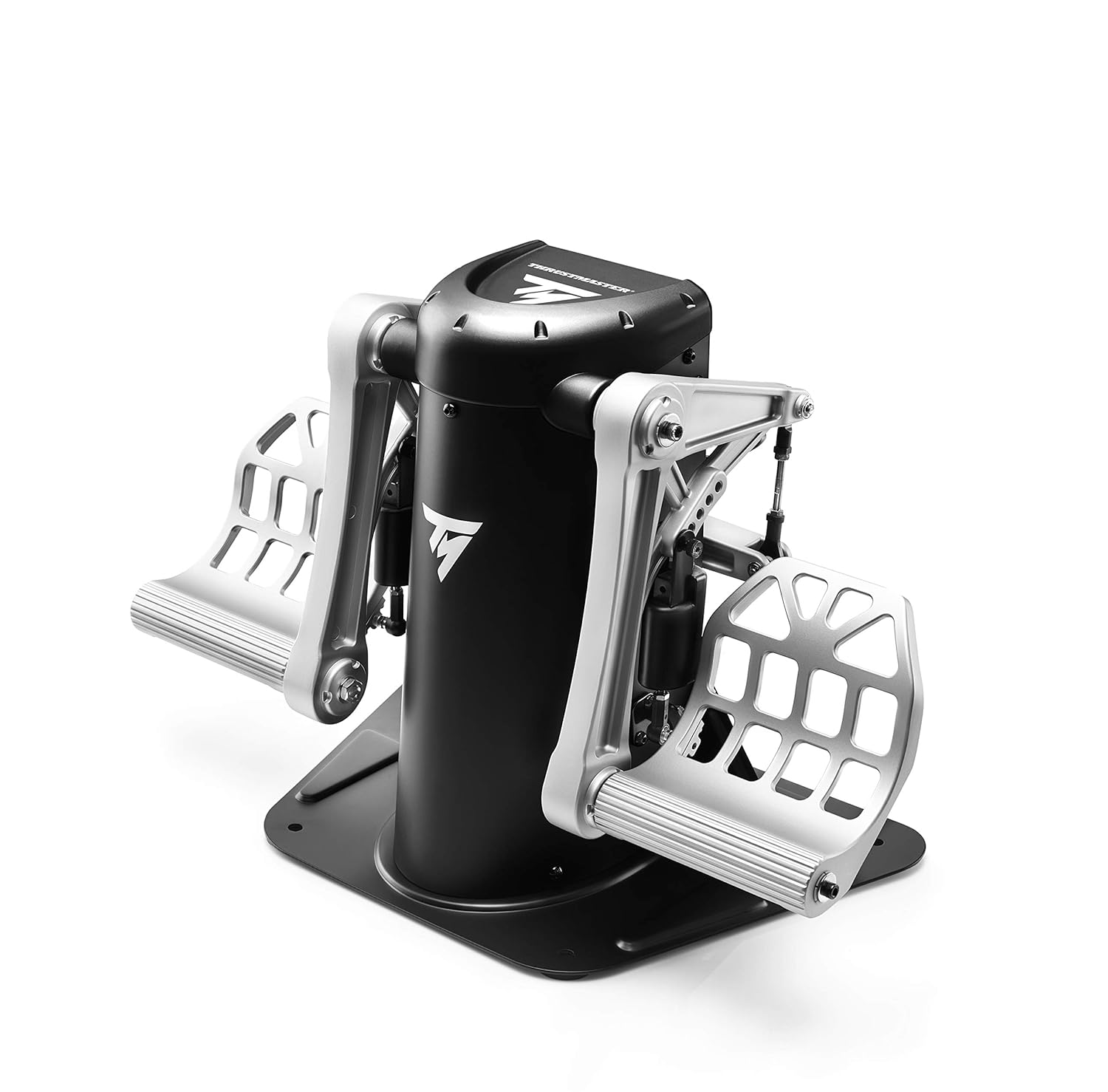
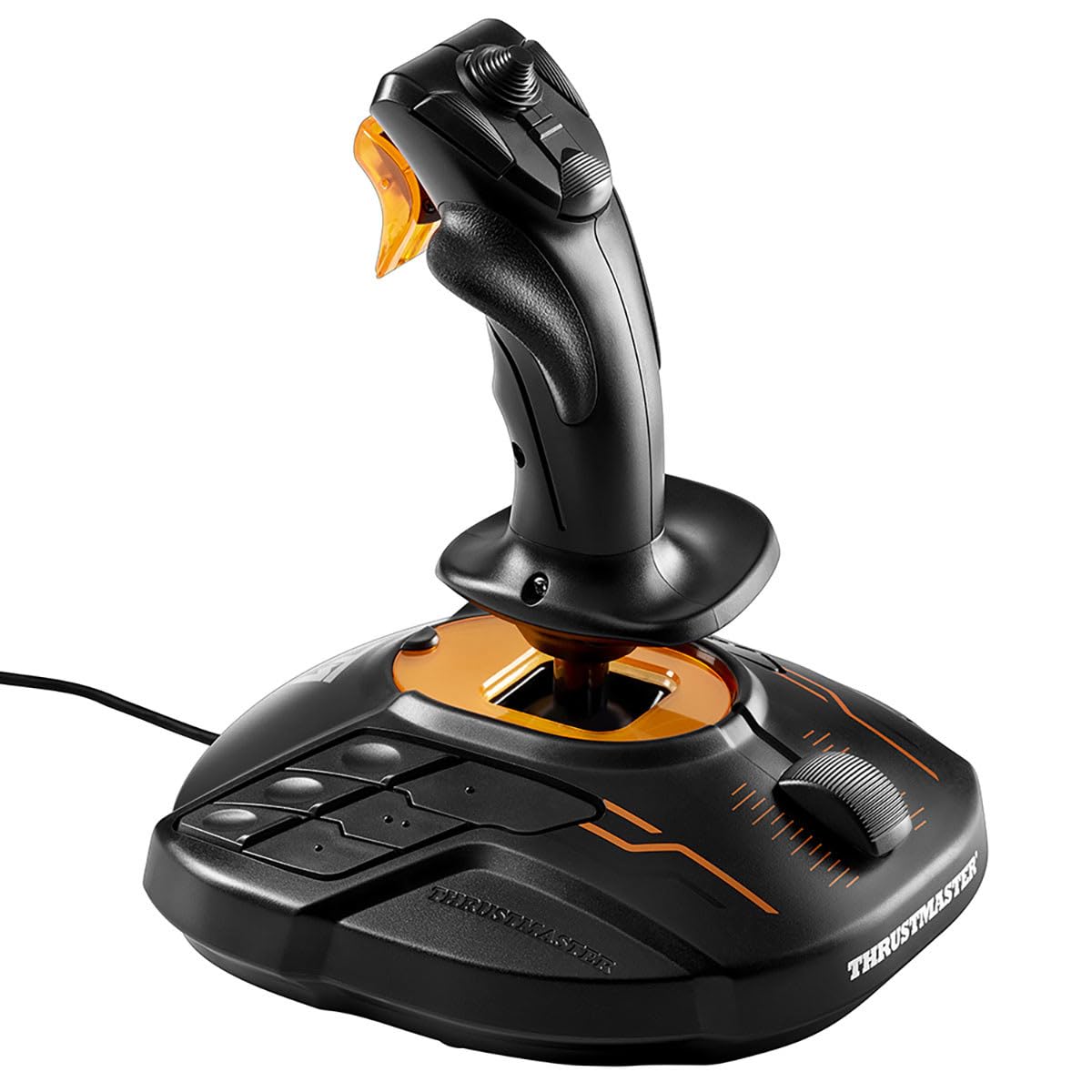
Choosing Your Input Device (Keyboard, Controller, or Joystick)
| Input type | Setup required | Verdict |
|---|---|---|
| Keyboard | None | Works for one session; awkward for banking and pitch |
| Xbox controller | Plug in — auto-detected by MSFS 2024 | Best starting point if you have one |
| Joystick or yoke | Calibration + axis mapping | Best long-term; not required on day one |
If you have an Xbox controller, plug it in before launching. MSFS 2024 detects it automatically and applies a gamepad preset — no manual binding needed.
Key bindings used in this guide (MSFS 2024 defaults):
Ctrl + E= engine start,Ctrl + Space= parking brake,Q/E= rudder left/right,B= extend flaps one notch,V= retract flaps one notch,Space= wheel brakes. Source: flightsimcoach.com MSFS 2024 keyboard commands (corroborated against official MSFS forums).
Setting Graphics Quality for Your PC
On first launch, MSFS 2024 runs a hardware benchmark and selects a graphics preset automatically. Accept the auto-detected setting for now. If the sim stutters, go to Options → General Options → Graphics and lower the preset one step (for example, from High to Medium). Full guidance is in the MSFS 2024 Best Settings — Day One Setup Guide for Beginners.
Choosing Your First Aircraft
The Cessna 172 Skyhawk is the right aircraft for your first flight. It is available across all editions of MSFS 2024 — see the official FAQ for your edition’s aircraft list. Here is why it is the correct starting point:
- Low cruise speed (~120 knots — about 138 mph). Slow enough that you have time to react and correct errors.
- Forgiving handling. The Cessna 172 does not snap into a spin when you make a mistake — it responds gently and predictably.
- Matches the in-sim tutorial content. Microsoft’s own Beginner Lessons use the Cessna 172, so every label in this guide matches what you see in the tutorials.
- Excellent cockpit visibility. Large windows make it easy to see the runway on approach.
Avoid jets, airliners, and twin-engine aircraft until you are comfortable with takeoffs and landings. Their faster speeds and complex systems — including FMC (Flight Management Computer) programming and engine management checklists — require knowledge you will build over time.
Tip: In the aircraft selector, type “Cessna 172” and choose the Cessna 172 Skyhawk (G1000) if it appears. The G1000 version uses a glass-panel display (large digital screens) that is easier to read than steam gauges.
Choosing Your First Airport
Choose a large international airport with long runways. Large airports offer more room to stop after landing and wide, clearly marked taxiways.
Recommended first airports:
| Airport | ICAO code | Country | Longest runway |
|---|---|---|---|
| Los Angeles International | KLAX | USA | 12,091 ft |
| London Heathrow | EGLL | UK | 12,802 ft |
| Dubai International | OMDB | UAE | 13,124 ft |
Use KLAX for North America or EGLL for Europe. For your first flight, you are not flying a route — you are taking off, flying a short circuit around the airport, and landing back on the same runway. A ten-minute circuit is a complete first flight.
Note: Set Weather → Clear Skies in the World Map before launching. MSFS 2024 uses live weather by default, which can spawn fog, thunderstorms, or crosswind conditions that are difficult for beginners.
Your First Flight: Step-by-Step
Step 1 — Opening the World Map and Setting Your Flight
- From the main menu, select World Map.
- Type your departure airport’s ICAO code in the top-left search bar and select it. ICAO codes are four-letter global airport identifiers — for example,
KLAXis Los Angeles International. - Click Set as Departure.
- Click the aircraft icon (bottom-right) and select the Cessna 172 Skyhawk.
- Under Flight Conditions, set Time of day → Day and Weather → Clear Skies.
- Under Assistance Options → Preset, choose Easy or Beginner.
- Click Fly.
Step 2 — Starting the Engine (Simple Start)
When the sim loads, the aircraft is parked with the engine off. Use Simple Start:
- Click inside the cockpit to give the sim keyboard focus.
- Press
Ctrl + E. This triggers MSFS 2024’s automated start sequence. - Watch the tachometer (the round RPM gauge on the instrument panel). The needle rises as the engine starts, then settles at around 1,000 RPM (revolutions per minute) at idle.
- Wait for the RPM to stabilise before moving.
Step 3 — Taxiing to the Runway
Taxiing means moving the aircraft along the ground under its own power to the runway.
- Release the parking brake: press
Ctrl + Space(default). The brake icon on the HUD (the on-screen instrument overlay) disappears when released. - Add approximately 20–25% throttle to start rolling forward.
- Steer with the rudder: keyboard defaults are
Q(left) andE(right). On Xbox controller, use the left thumbstick. - Follow the yellow centreline painted on the taxiway surface.
- At the hold-short line before the runway (two solid yellow lines), reduce throttle to zero and press
Spaceto apply the wheel brakes.
Step 4 — Takeoff
- Line up on the runway centreline and release the parking brake (
Ctrl + Space). - Advance throttle smoothly to full (100%).
- Use small rudder inputs to stay centred as speed builds.
- At approximately 70 knots (watch the airspeed indicator — the round instrument showing speed in knots), apply gentle back pressure on the stick or yoke.
- The aircraft lifts off. Do not push the nose back down — maintain gentle back pressure and let it climb.
Step 5 — Straight-and-Level Flight
Once you are 500 feet above the ground (check the altimeter — the round instrument showing altitude in feet), reduce throttle to 70–75% and allow the aircraft to continue climbing gently. At 1,500 feet, reduce throttle further until the altimeter stops rising. This is straight-and-level flight.
Practise gentle turns: push the stick left or right to bank. Add a small amount of back pressure during any turn to keep the nose from dipping.
Step 6 — Landing (the Basics)
Landing is the hardest part of flying. Your first landing will not be perfect — that is expected.
- Reduce power to 50% throttle and let the aircraft slow to 90 knots.
- Extend Flaps 10°: press
Bonce. Flaps are moveable surfaces on the wing’s trailing edge that increase lift and drag at low speed, letting you fly slower without stalling. - Turn back toward the runway, keeping it visible out of the left window.
- At two miles from the runway threshold, extend Flaps 20° (press
Bagain) and aim for 75 knots. - On short final (close to the runway numbers), extend Flaps 30° (press
Bonce more) and aim for 65 knots. - Hold the nose slightly above the horizon and reduce power to idle as you cross the threshold. The aircraft settles onto the main gear.
- After touchdown, hold
Spaceto apply the wheel brakes and slow to a stop.
Common Beginner Mistakes and How to Avoid Them
| Mistake | Why it happens | Fix |
|---|---|---|
| Pulling back hard on takeoff | Instinct to climb steeply | Lift off at 70 knots then hold gentle back pressure only |
| Too fast on final approach | Not reducing throttle early enough | Start the slowdown at 2 miles out, not half a mile |
| Drifting off the runway on landing | Ignoring rudder after touchdown | Stay on the rudder and keep the nose pointing straight |
| Crash Detection ends your flight early | On by default | Set Assistance Options → Crash Detection to Off for first flights |
| Rough weather at spawn | MSFS 2024 uses live weather by default | Always set Weather → Clear Skies in the World Map |
Frequently Asked Questions
Do I need a joystick or flight stick to play Microsoft Flight Simulator 2024?
No. MSFS 2024 works well with a keyboard and mouse, and plays naturally with an Xbox controller. A joystick improves the experience over time but is not required on day one.
What is the easiest aircraft to fly in MSFS 2024 for beginners?
The Cessna 172 Skyhawk. It is slow, forgiving, and is the aircraft used in MSFS 2024’s own Beginner Lessons. Avoid airliners and jets until you are comfortable with basic takeoffs and landings.
How long does Microsoft Flight Simulator 2024 take to install?
The base installer is approximately 50 GB; selected World Updates and additional scenery can reach 150 GB or more. On a standard home broadband connection, plan for one to three hours. MSFS 2024 lets you fly while remaining content downloads in the background.
Can I fly MSFS 2024 with an Xbox controller?
Yes. MSFS 2024 auto-detects Xbox controllers and applies a gamepad preset. Both thumbsticks provide smooth proportional control of pitch and roll — it is one of the easiest starting setups for a complete beginner.
What are the minimum PC specs for Microsoft Flight Simulator 2024?
According to Microsoft’s official MSFS 2024 system requirements, the minimum spec is an Intel Core i5-8400 / AMD Ryzen 5 2600X processor, 16 GB RAM, and an Nvidia GTX 970 or AMD RX 590 GPU with 8 GB VRAM (Video RAM — the dedicated memory on your graphics card). At minimum specs, set graphics to Low and expect 20–30 FPS (frames per second).
What’s Next?
Your first landing almost certainly needed improvement — that is normal. The next step is learning the approach properly: managing each flap stage at the correct airspeed, reading VASI lights (Visual Approach Slope Indicator — the red-and-white lights beside the runway that show whether you are too high, on slope, or too low), and nailing the flare.
Continue with: How to Land in MSFS 2024 — A Beginner’s Approach and Landing Guide
Last updated: 20 May 2026. Reviewed by the Flight Sim Workshop editorial team. Tested against Microsoft Flight Simulator 2024 build 1.7.27.0 (Sim Update 5, released 30 April 2026). Source: MSFS Sim Update 5 release notes.