Looking for the MSFS 2024 best settings to use on day one? You’ve installed the sim, completed the initial setup, and you’re staring at the main menu. Before you jump into the cockpit, there are a handful of quick changes that will make your first flights much more enjoyable.
This isn’t an exhaustive deep-dive — it covers the MSFS 2024 best settings to change right away — we’ve got a full graphics settings guide and a performance optimisation guide for that. This is about the quick, high-impact changes you should make on day one as a beginner.
1. Keep Pilot Assistance on Full Support
This is one of the MSFS 2024 best settings to verify. If you changed it during initial setup, go back and check it’s still on. Full Support is your best friend as a beginner.
To check:
- Go to Settings → Assistances.
- Make sure the Piloting section is set to “Full” or “All Assists”.
This keeps the aircraft stable and forgiving. As a new simmer, you want to focus on learning to fly — not fighting the aircraft. You can gradually reduce assists as you build confidence.
Key assists to leave on for now:
- Auto-rudder — Automatically applies rudder during turns so you don’t need pedals.
- Assisted landing — Helps guide you onto the runway.
- Unlimited fuel — No need to worry about fuel management yet.
- Crash detection off (or damage set to visual only) — Lets you practice without constant restarts.
2. Graphics: Start With the Recommended Preset
MSFS 2024 automatically detects your hardware and suggests a graphics preset during installation. Our advice: trust it for now.
If you’re getting less than 30 frames per second (the game feels sluggish or choppy), try dropping down one preset level:
- Ultra → High-End
- High-End → Medium
- Medium → Low-End
To change graphics settings:
- Go to Settings → General → Graphics.
- Change the Global Rendering Quality preset.
- Click Apply and Save.
Don’t spend ages tweaking individual settings right now. The presets are well-balanced. You can fine-tune later when you’re more familiar with the sim — our graphics settings guide covers this in detail.
3. Enable the FPS Counter
It’s helpful to know how your sim is performing. Enable the built-in frame rate counter so you can see if changes you make are actually helping.
- Go to Settings → General → Developers.
- Turn on Developer Mode (this just gives you access to extra tools — it doesn’t change gameplay).
- Once enabled, a menu bar appears at the top of the screen. You can toggle an FPS counter from there.
What to aim for: 30 FPS is perfectly playable for a flight sim. 40-60 FPS is ideal. If you’re consistently below 25 FPS, consider lowering your graphics preset.
4. Set Up Your Data and Streaming Options
MSFS 2024 streams scenery data from the cloud. Making sure this is configured properly ensures the world looks as good as possible.
- Go to Settings → General → Data.
- Make sure Online Functionality is turned On.
- Enable Photogrammetry — this uses real-world 3D data for major cities, making them look incredibly realistic.
- Enable Bing Data World Graphics — this streams satellite imagery for accurate ground textures.
- Set Rolling Cache to On, with a size of 8-16 GB. This stores recently viewed scenery so it loads faster when you return to the same area.
If your internet connection is slow or has a data cap, you can reduce the bandwidth limit in the Data settings. The scenery won’t look quite as sharp, but it’ll still be impressive.
5. Camera Settings — Make Flying More Comfortable
The default camera can feel a bit sensitive for new players. A few tweaks make the cockpit experience much more comfortable:
- Reduce cockpit camera movement — Go to Settings → General → Camera and reduce Cockpit Interaction System sensitivity if the view feels too twitchy when you look around.
- Enable chase camera for practice — When you’re learning, the external chase camera (press the End key or equivalent) gives you a better sense of what your aircraft is doing. It’s easier to spot mistakes from outside.
- Smart Camera — If available, enable Smart Camera in the camera settings. This automatically shifts your view during key moments (like landing approach) to give you a better angle.
6. Sound Settings
The sound design in MSFS 2024 is superb, and a couple of small tweaks can enhance the experience:
- Turn on cockpit ambient sounds — You’ll hear the hum of instruments, the click of switches, and the rumble of the engine through the fuselage. It adds a huge amount of immersion.
- Adjust ATC volume — Air Traffic Control radio chatter can be very quiet by default. Increase the ATC volume in the audio settings so you can hear instructions clearly.
- Use headphones if possible — The spatial audio in MSFS is excellent with headphones. You’ll hear engine sounds shift as you move your head around the cockpit.
7. Weather and Time of Day
When setting up your first flights, the weather and time of day you choose make a big difference to the experience:
- Start with clear skies — Before selecting a flight, set the weather to Clear Skies or Few Clouds. Flying in a thunderstorm as a beginner is not fun (yet).
- Fly during daytime — Set the time to mid-morning or afternoon. Good visibility makes it much easier to navigate and land.
- Try Live Weather later — Once you’re comfortable, switch to Live Weather for real-world conditions. It’s one of the most impressive features of the sim, but save it for when you’re ready for a challenge.
8. Traffic Settings
MSFS can display AI aircraft, real-time online traffic, ground vehicles, boats, and more. These add life to the world but can also impact performance:
- Turn AI aircraft traffic to Low or Medium — Keeps airports feeling alive without overwhelming your PC.
- Enable multiplayer if you want to see other players — It’s fun to spot other simmers at busy airports.
- Road traffic and boats can be turned down — If performance is tight, reducing these has minimal visual impact but can help frame rates.
9. Control Sensitivity
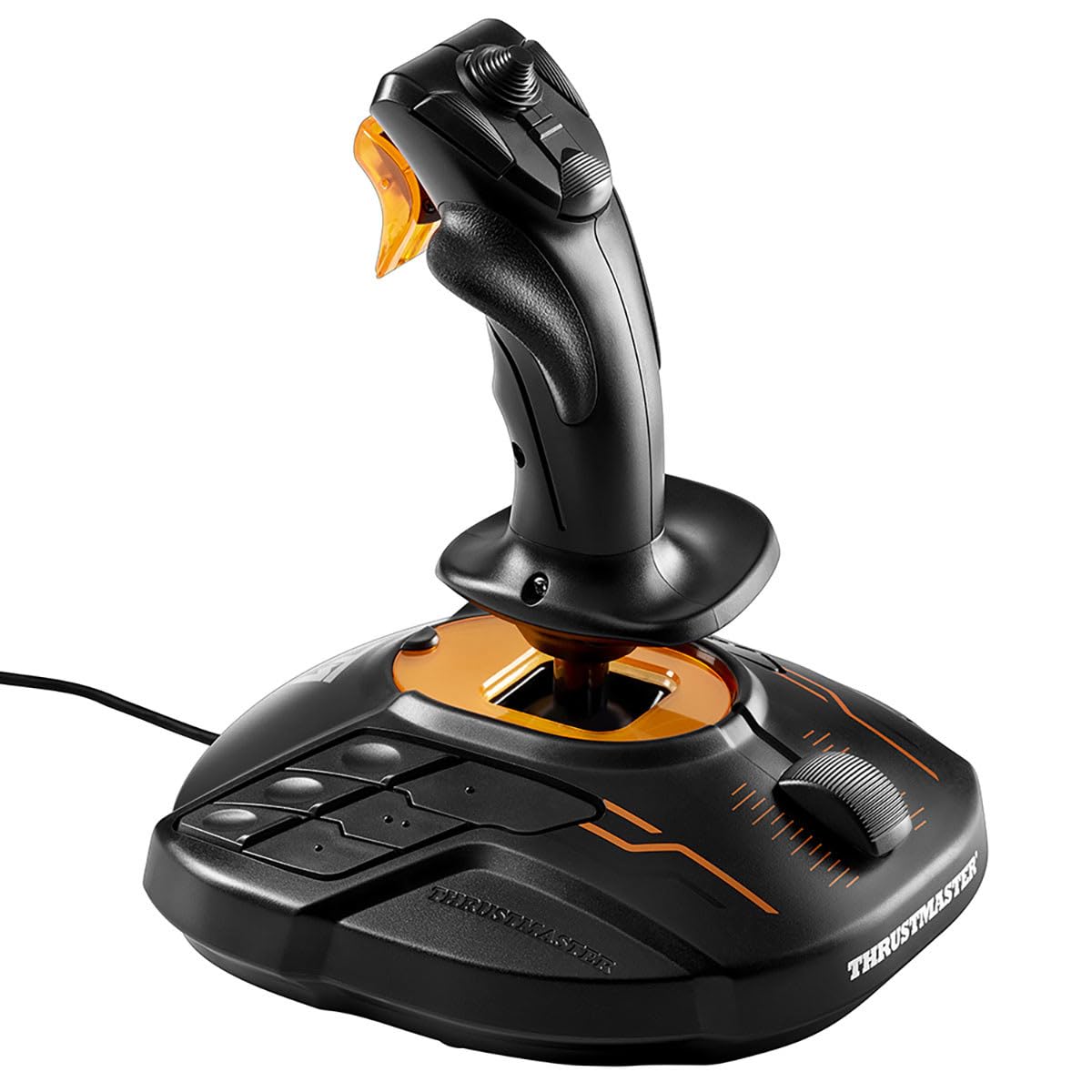
If you’re using a joystick, yoke, or gamepad, the default sensitivity might feel too twitchy or too sluggish. Here’s how to adjust it:
- Go to Settings → Controls.
- Select your controller.
- Click on the axis you want to adjust (e.g., pitch, roll).
- Adjust the sensitivity curve — adding a slight curve (making it less sensitive around the centre) makes the controls feel smoother and more forgiving for beginners.
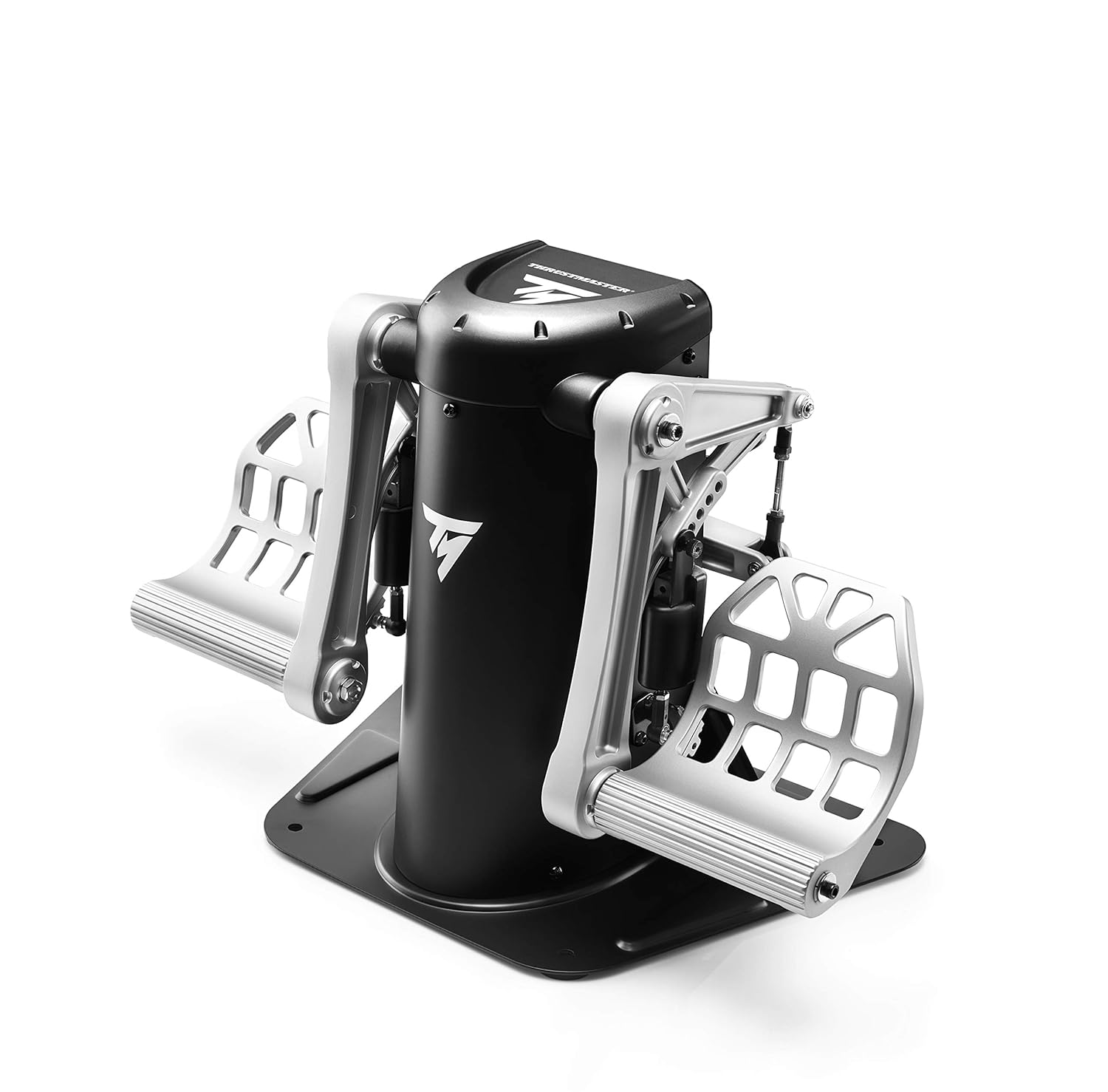
If you’re using a keyboard and mouse, the defaults are usually fine. For more detailed control setup, check our controller guide.
MSFS 2024 Best Settings for Beginners Checklist
Here’s a quick summary of the MSFS 2024 best settings to change on day one:
- ✅ Pilot assistance set to Full Support
- ✅ Graphics preset set to recommended (or one step lower if choppy)
- ✅ FPS counter enabled
- ✅ Online data, Photogrammetry, and Bing Data turned on
- ✅ Rolling cache enabled (8-16 GB)
- ✅ Camera sensitivity adjusted for comfort
- ✅ ATC volume turned up
- ✅ First flights set to clear skies, daytime
- ✅ AI traffic on Low or Medium
- ✅ Controller sensitivity curves adjusted if needed
What’s Next?
With these MSFS 2024 best settings dialled in, you’re ready to start flying. Here’s where to go next:
- Learn the Basic Controls — Understand throttle, pitch, roll, yaw and how to steer.
- Your First Flight — A step-by-step walkthrough from takeoff to landing.
- Graphics Settings Deep Dive — When you’re ready to fine-tune for the perfect balance of visuals and performance.
- Community Folder Guide — Start installing free add-ons to enhance your experience.
Remember — these MSFS 2024 best settings are starting points, not final answers. As you spend more time with the sim, you’ll develop your own preferences. The beauty of MSFS is how deeply customisable it is. The official MSFS website also has helpful resources for new players. For now, these settings will give you a smooth, enjoyable introduction to flight simulation. Clear skies ahead! ✈️